
opporeno6怎么设置简体中文 opporeno6pro怎么设置简体中文
导读:opporeno6怎么设置简体中文,关于opporeno6怎么设置简体中文的教程内容,opporeno6设置简体中文需要从设置中进入其他设置,再选择语言进行设置。具体操作方法如下:
opporeno6怎么设置简体中文
关于opporeno6怎么设置简体中文的教程内容,关于opporeno6怎么设置简体中文 及其 opporeno6简体中文在哪设置,下面来一起了解一下吧。

opporeno6怎么设置简体中文的详细步骤
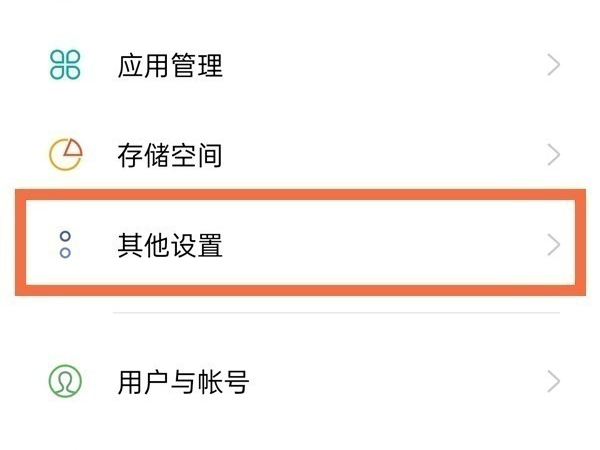
- 1第一步:点击手机桌面上的【设置】,点击【其他设置】。
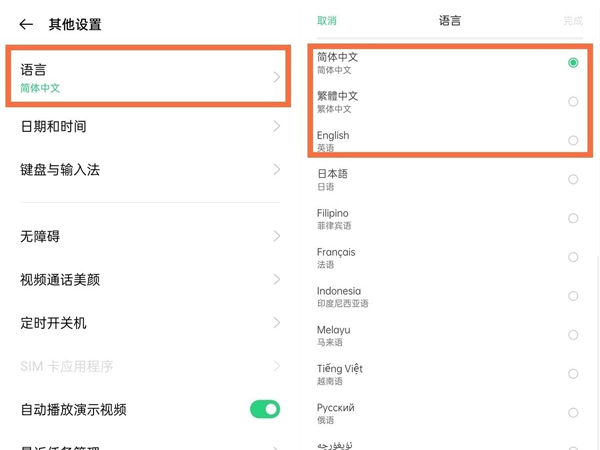
- 2第二步:点击【语言】,勾选简体中文,点击【完成】即可。
以上IT袋网介绍的opporeno6简体中文在哪设置 及其 opporeno6怎么设置简体中文的电脑IT小方法,供您全面了解参考!


相关阅读
-

华为mate30epro抬屏显示在哪 怎么设置
一篇关于华为mate30epro抬屏显示在哪的方法内容,华为mate30epro抬屏显示在快捷启动及手势中即可设置。设置抬起亮屏共需四个步骤,具体操作步骤如下:
-
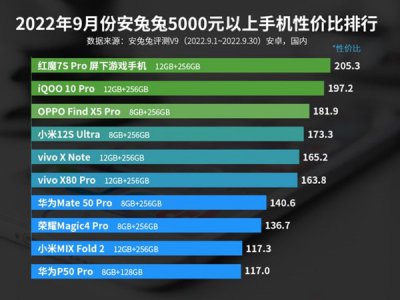
2022年5000元以上性价比手机推荐 高性价比手机有哪些
现在国内手机厂商都在冲击高端市场,而高端也就意味着价格会比较高。从价格上来看,5000元以上在国内已经算是高端手机了。近日安兔兔公布了2022年9月份5000元以上手机性价比排名。下面一
-

拯救者电竞手机2Pro有双扬声器吗 拯救者电竞手机2Pro支持双扬声器吗
相对于大多数人拯救者电竞手机2Pro有双扬声器吗方面的讲解,拯救者2 Pro采用的是双等效的对称式双扬声器,而且完全是对称式正出,游戏的时候可以体验到震撼的音效。
-
手机页面变成黑白色了怎么调回来 如何将手机页面颜色恢复正常?
跟大家说一说手机页面变成黑白色了怎么调回来的小经验,接下来本站小编为大家介绍。 手机是现代人生活中不可或缺的工具,人们可以通过手机获取信息、社交、购物、娱乐等,其中最常用